Sign in
In the browser
Open https://gateway.keera.ch. The sign-in screen shows one button for each way to sign in, such as Google.
The first time, you either create an organisation or join one that invited you; see the Quickstart.
If your administrator gave you a passkey set-up link, open it, give the passkey a name and click Add passkey. Your device then asks for your fingerprint, face or PIN. After that, sign in with Sign in with a passkey.
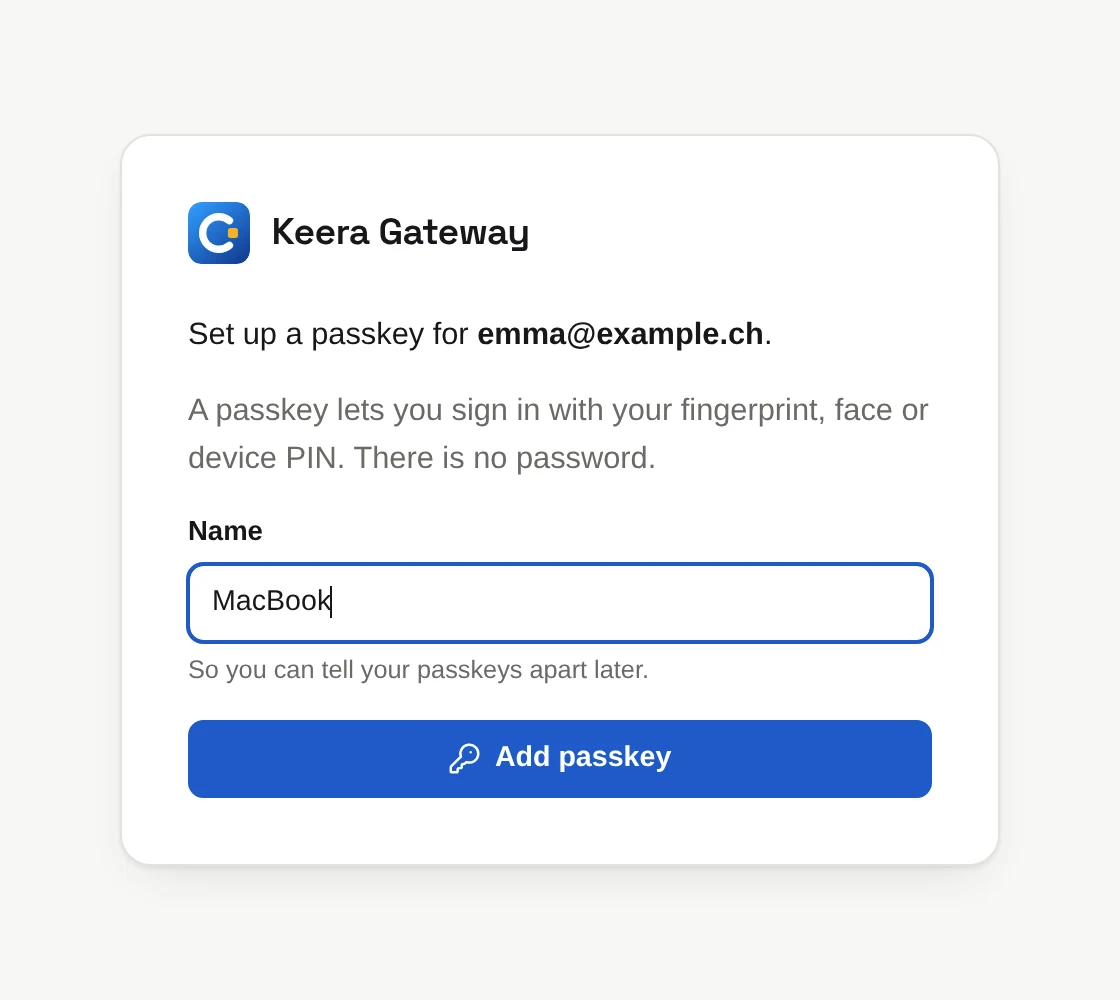
Add a passkey on each device
Once signed in, open the menu next to your address at the bottom of the sidebar and choose Your passkeys to add one for another device.
Several organisations
If you belong to more than one organisation, the top right of the panel shows a menu instead of the organisation's name. Pick an organisation there to switch. Invitations to other organisations show up in the same menu.
In the terminal
Download keera for Linux, macOS or Windows from the
releases page and put
it on your PATH. It signs you in through the browser:
keera login --url https://gateway.keera.ch
A browser window opens. Sign in as usual, and the terminal is signed in too.
The gateway becomes the default for later commands, so you only need --url
once. Where there are several ways to sign in, add --provider, such as
--provider passkey.
| Command | What it does |
|---|---|
keera whoami |
shows who you are signed in as, and where |
keera logout |
signs this machine out |
keera logout --all |
ends all your sign-ins, on every machine |
keera org list |
lists your organisations |
keera org switch <name> |
makes commands act on another organisation |
A sign-in from the terminal lasts 30 days.
Working over ssh
keera login waits for the browser on the same machine. Over ssh, forward
the port it prints with ssh -L, or sign in on your own machine.