Models
Every model belongs to one organisation. Only that organisation's keys can
call it, and its administrators add, change and remove it. A new organisation
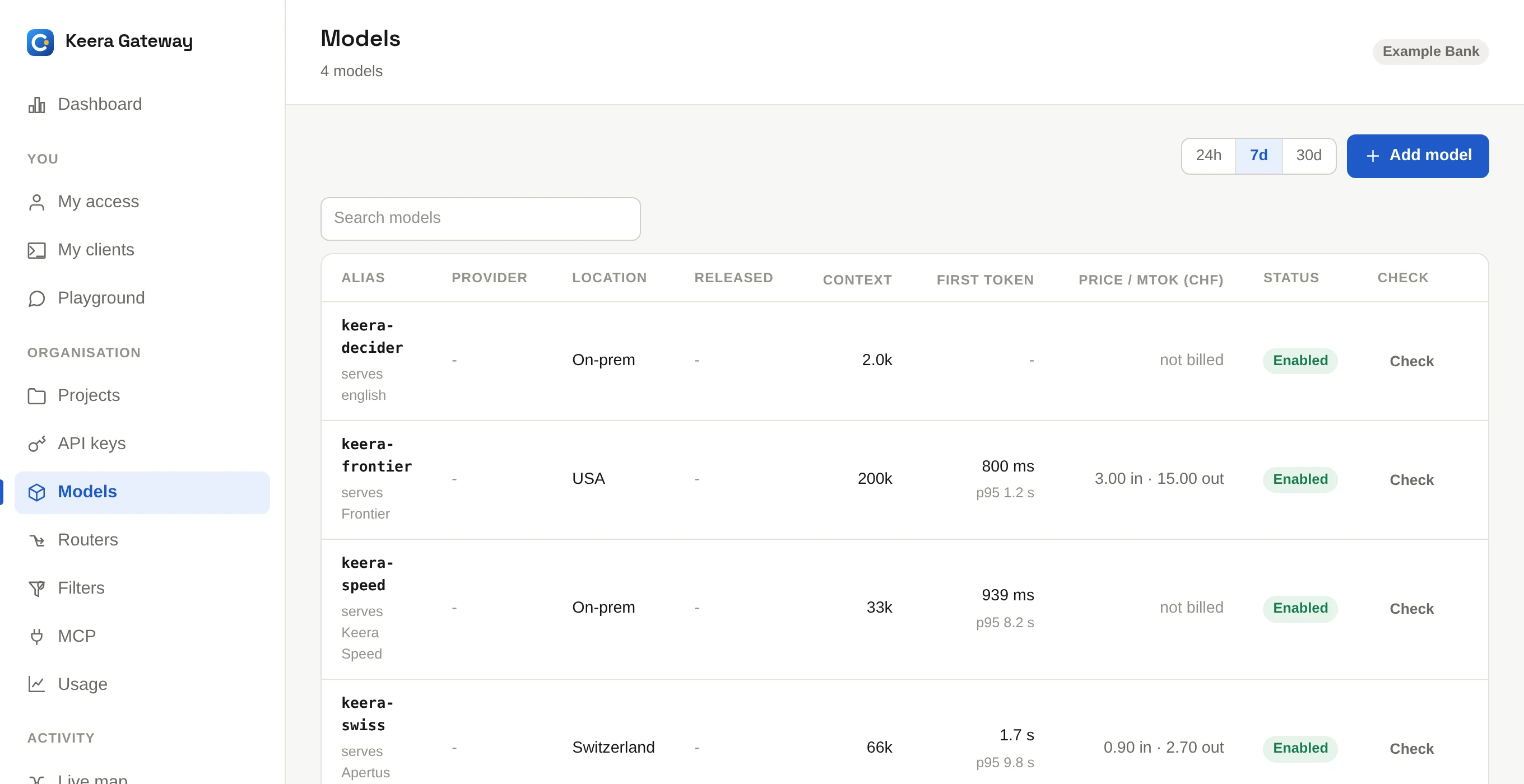
starts with a set of models, such as keera-speed.
The alias
Tools call a model by its alias,
such as keera-speed. An alias uses lowercase letters, digits and hyphens. It
may also hold a slash, as in anthropic/claude-sonnet.
Add a hosted model
Open Models and click Add model. The model catalogue lists every model the built-in providers offer: Anthropic, OpenAI, and the Swiss providers Infomaniak, stepping stone, Phoeniqs and CSCS. It shows each model's context window, location and list prices.
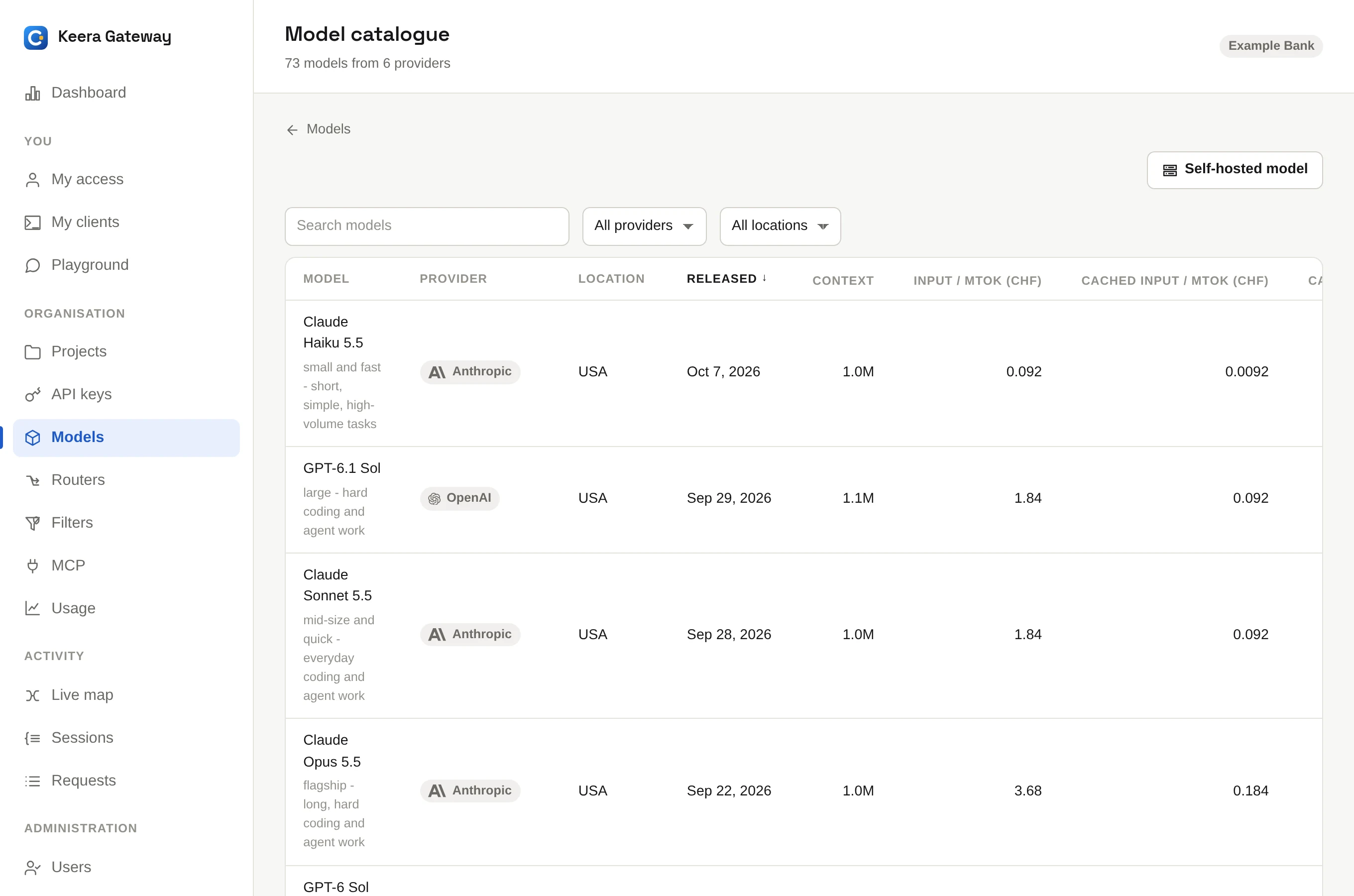
- Click Add on a model.
- Enter the alias, and your own API key for the provider if you have one.
- Click Save.
Without your own key, the model uses the gateway's key and you pay at list price; see Billing. With it, the provider bills you directly.
The address, context window and prices are filled in for you. They are under Advanced options if you want to change them, for example to enter the price you negotiated.
On the command line:
keera model add keera-frontier --provider anthropic --backend-model claude-opus-5-5
keera model set keera-frontier --api-key @-     # optional: your own key, then Ctrl-D
@- reads the key from the keyboard, so it does not end up in your shell
history. keera model catalogue lists everything the providers offer.
Prompts to a hosted model leave the gateway's private network
Before you offer one, decide who may use it, and set a budget and a filter. Swiss providers keep prompts in Switzerland; Anthropic and OpenAI do not.
Add your own model
For a model you run yourself, such as Keera Engine on vLLM, click Self-hosted model above the catalogue. Enter:
- the alias and a short description
- the backend URL, which the gateway must reach, such as
https://llm.example.ch/v1 - the backend model: the name your server serves the model under (vLLM's
--served-model-name) - the context window in tokens
- input and output prices, if you want to show costs (leave 0 for none)
keera model add my-coder --backend https://llm.example.ch/v1 \
  --backend-model qwen2.5-coder --max-context-tokens 32768
Write a good description
The description tells people what the model is for. Routers also read it to choose a model, so write it for that:
keera model set keera-speed --description \
  "Fast and local. Short edits, syntax questions, everyday work."
Check a model
Click Check on the models screen, or run:
keera model check keera-speed
The check gives the model a tool and a question only the tool can answer. It reports whether the model made a proper tool call, whether streaming works, and whether the server answered as the right model. Coding agents need tool calls to edit files, so run the check after every change to a model.
Stop using a model
- To stop one project or key from using it, leave it out of that guardrail's model list.
- To stop the whole organisation, open the model and turn it off.
- To remove it, delete it. The confirmation lists the filters and routers that use it first.