Projects and keys
Projects
A project groups keys, usually for one team or product. Its guardrails apply to every key in it, and its usage is reported on its own.
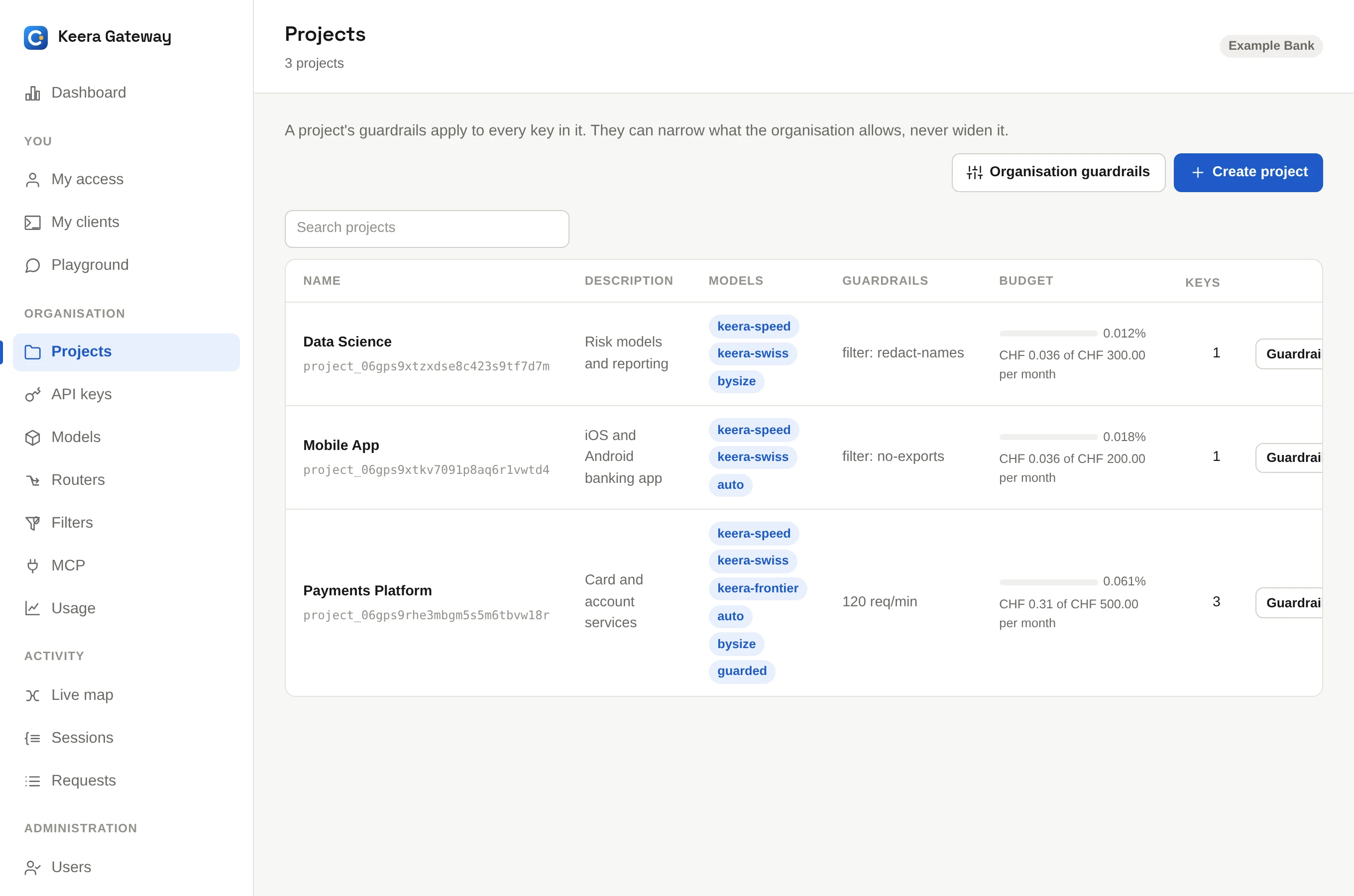
To create one, open Projects and click Create project, or run:
keera project create "Payments Platform" --description "Card and account services"
A new organisation starts with a project called default. You can rename it.
A project can only be deleted once it has no active keys and no running
sandboxes.
Issue a key
Only administrators issue keys. Open API keys and click Issue key.
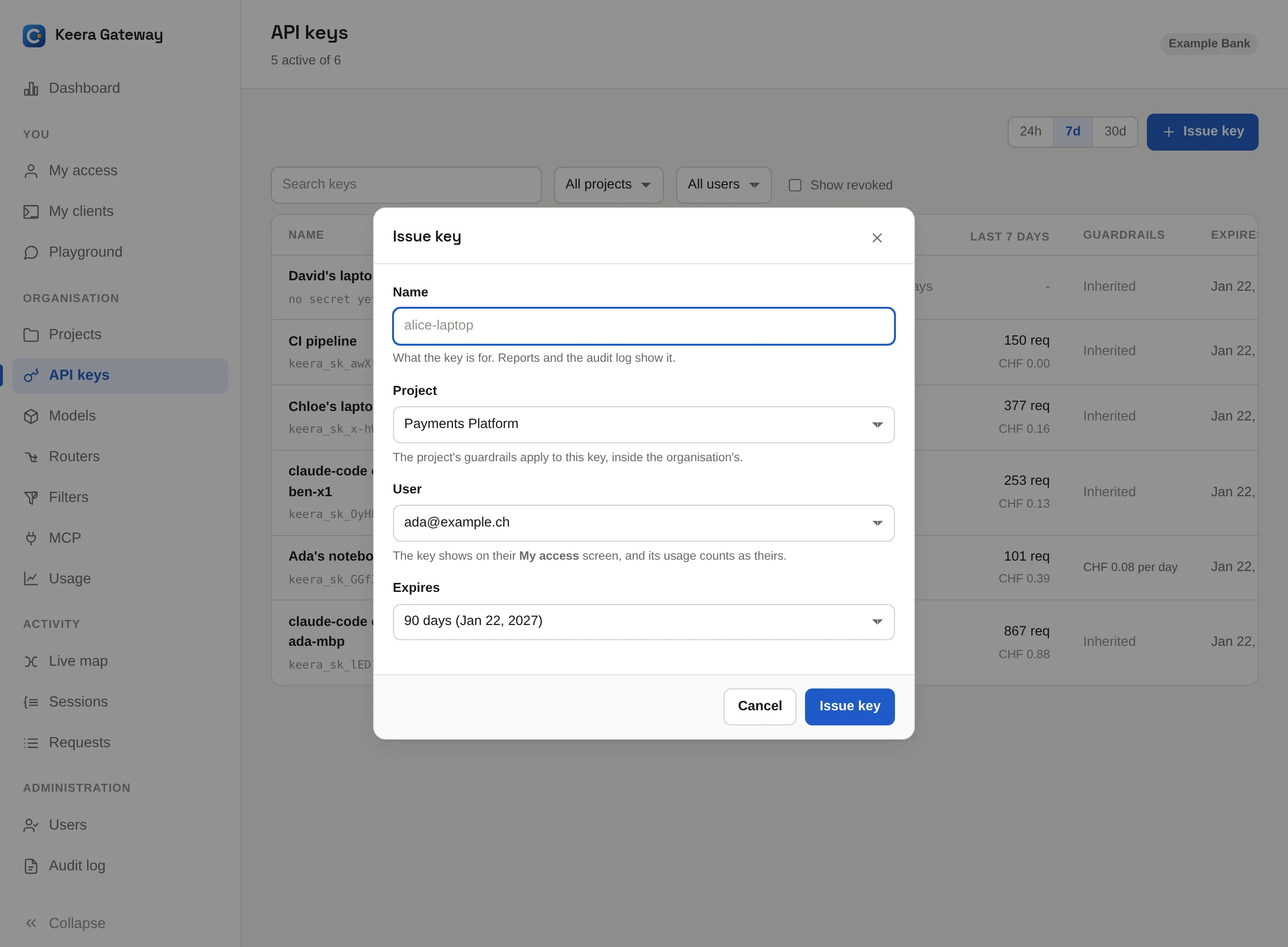
| Field | What it means |
|---|---|
| Name | What the key is for, such as Ada's laptop or CI pipeline. Reports show this name. |
| Project | The project the key belongs to, and whose guardrails it follows. |
| User | The person the key belongs to. Leave it empty for a pipeline. |
| Expires | 90 days by default. You can pick another lifetime, a date, or never. |
| Secret | Shown when the key is for someone else. They activate it and see it once (the default) means only that person ever sees the secret. |
On the command line:
# For a person, who activates it themselves
keera key create --project "Payments Platform" --user ada@example.ch \
  --name "Ada's laptop" --pending

# For a pipeline, active at once
keera key create --project "Payments Platform" --no-user --name "CI pipeline"
The secret is shown only once. Keera stores only a hash of it. Nobody, not even an operator, can read it later.
The keys screen
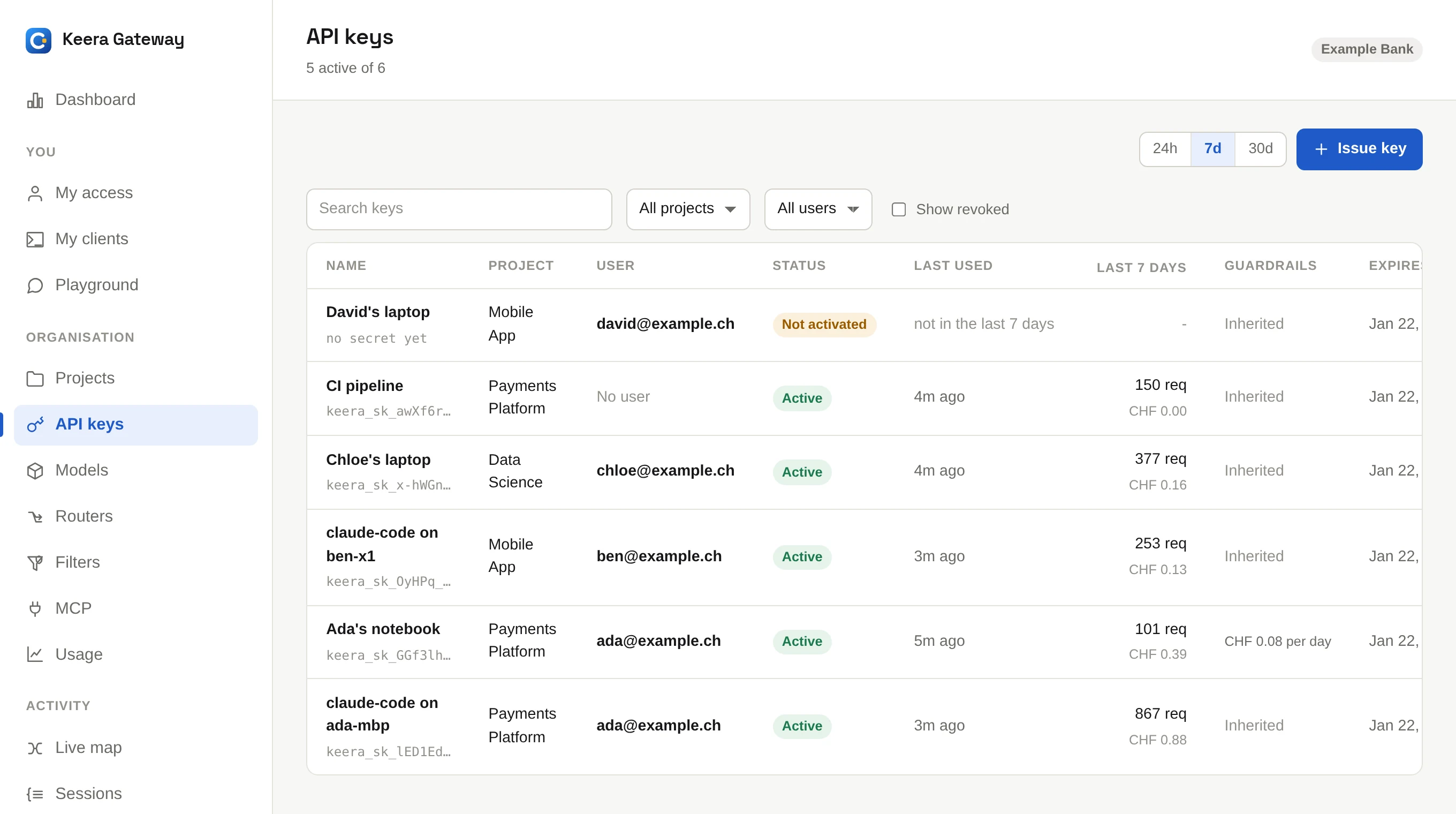
Each row shows the key's project, owner, status, recent use and expiry. From here you can:
- Rotate or Revoke a key. See Rotate or revoke a key.
- Click Guardrails to give one key its own limits, inside its project's.
- Click the pencil to rename it.
keera key list
keera key rotate "Ada's laptop"
keera key revoke "Ada's laptop"
keera key set "Ada's laptop" --name "Ada's old laptop"
When someone leaves
Disable the person on the Users screen. All their keys are revoked at once. See Users and roles.