Connect your tools
Every tool uses the same address, https://gateway.keera.ch/api. Give each
machine and tool a key of its own, so you can replace one without breaking
the others.
Let the panel write it for you
In the panel, open My clients and click Connect client. Pick your tool, and the panel shows the exact settings, with your key and the models you may use already filled in.
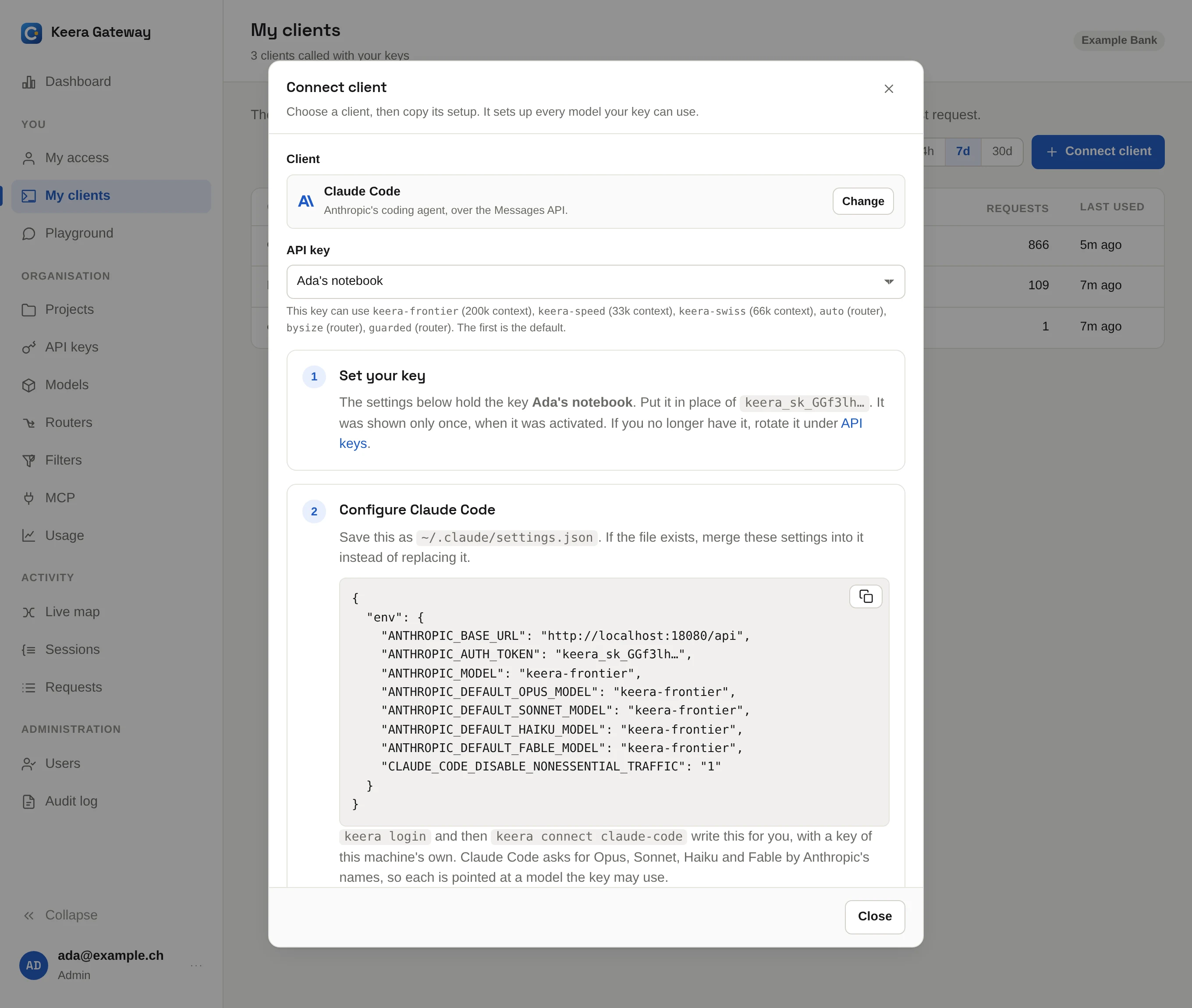
Claude Code
Two commands set up Claude Code on this machine:
keera login --url https://gateway.keera.ch
keera connect claude-code
This gives the machine its own key and writes it into
~/.claude/settings.json, together with every model you may use. As a
member, it activates the key an administrator issued for you. The rest of
the file stays as it was. Run claude in your project, and /model switches
between your models.
--model <alias>picks the model Claude Code starts with.--printshows the settings instead of writing them, for another machine.- Run the command again to replace the key with a new one.
On a self-hosted gateway, a Claude Team or Enterprise plan can pay instead; see Claude plans.
Keep the key out of Git
Never put the key in a project's .claude/settings.json. That file is
usually committed.
Codex
Set your key as an environment variable, then add the gateway to
~/.codex/config.toml:
model = "keera-speed"
model_provider = "keera"

[model_providers.keera]
name = "Keera"
base_url = "https://gateway.keera.ch/api/v1"
env_key = "KEERA_API_KEY"
wire_api = "responses"
Put the first two lines above the first [section] of the file. Then run
codex in your project.
OpenCode, Pi and others
keera connect prints the settings for every tool your gateway knows:
keera connect               # the list of tools
keera connect opencode      # the settings for OpenCode
keera connect pi --key laptop
The settings go to the screen and the instructions go to the error output, so you can write the settings straight into a file:
keera connect opencode > ~/.config/opencode/opencode.json
Any OpenAI client
Anything that takes an OpenAI base URL and an API key works. Use:
- Base URL:
https://gateway.keera.ch/api/v1 - API key: your Keera key,
keera_sk_… - Model: an alias you may use, such as
keera-speed
import os
from openai import OpenAI

client = OpenAI(
    base_url="https://gateway.keera.ch/api/v1",
    api_key=os.environ["KEERA_API_KEY"],
)
reply = client.chat.completions.create(
    model="keera-speed",
    messages=[{"role": "user", "content": "Hello"}],
)
print(reply.choices[0].message.content)
curl https://gateway.keera.ch/api/v1/chat/completions \
  -H "Authorization: Bearer $KEERA_API_KEY" \
  -H "Content-Type: application/json" \
  -d '{"model": "keera-speed", "messages": [{"role": "user", "content": "Hello"}]}'
import os
from anthropic import Anthropic

client = Anthropic(
    base_url="https://gateway.keera.ch/api",
    auth_token=os.environ["KEERA_API_KEY"],
)
reply = client.messages.create(
    model="keera-speed",
    max_tokens=1024,
    messages=[{"role": "user", "content": "Hello"}],
)
print(reply.content[0].text)
To see which models your key may use:
curl https://gateway.keera.ch/api/v1/models -H "Authorization: Bearer $KEERA_API_KEY"
MCP servers
Your administrator can put MCP servers behind the gateway too. Use the same
key. keera mcp connect <server> prints the settings, for example:
claude mcp add --transport http github https://gateway.keera.ch/api/mcp/github \
  --header "Authorization: Bearer $KEERA_API_KEY"