Users and roles
Roles
| Role | What they can do |
|---|---|
| Member | Use their own keys. See their own usage, sessions and requests. Read the organisation's models, filters and routers. |
| Administrator | Everything in the organisation: people, projects, keys, models, guardrails, filters, routers, MCP servers, sandbox classes. |
| Operator | Everything, in every organisation. Set by the gateway's settings, never in the panel. |
Add a person
Open Users and click Add user, or run:
keera user add ada@example.ch --role admin
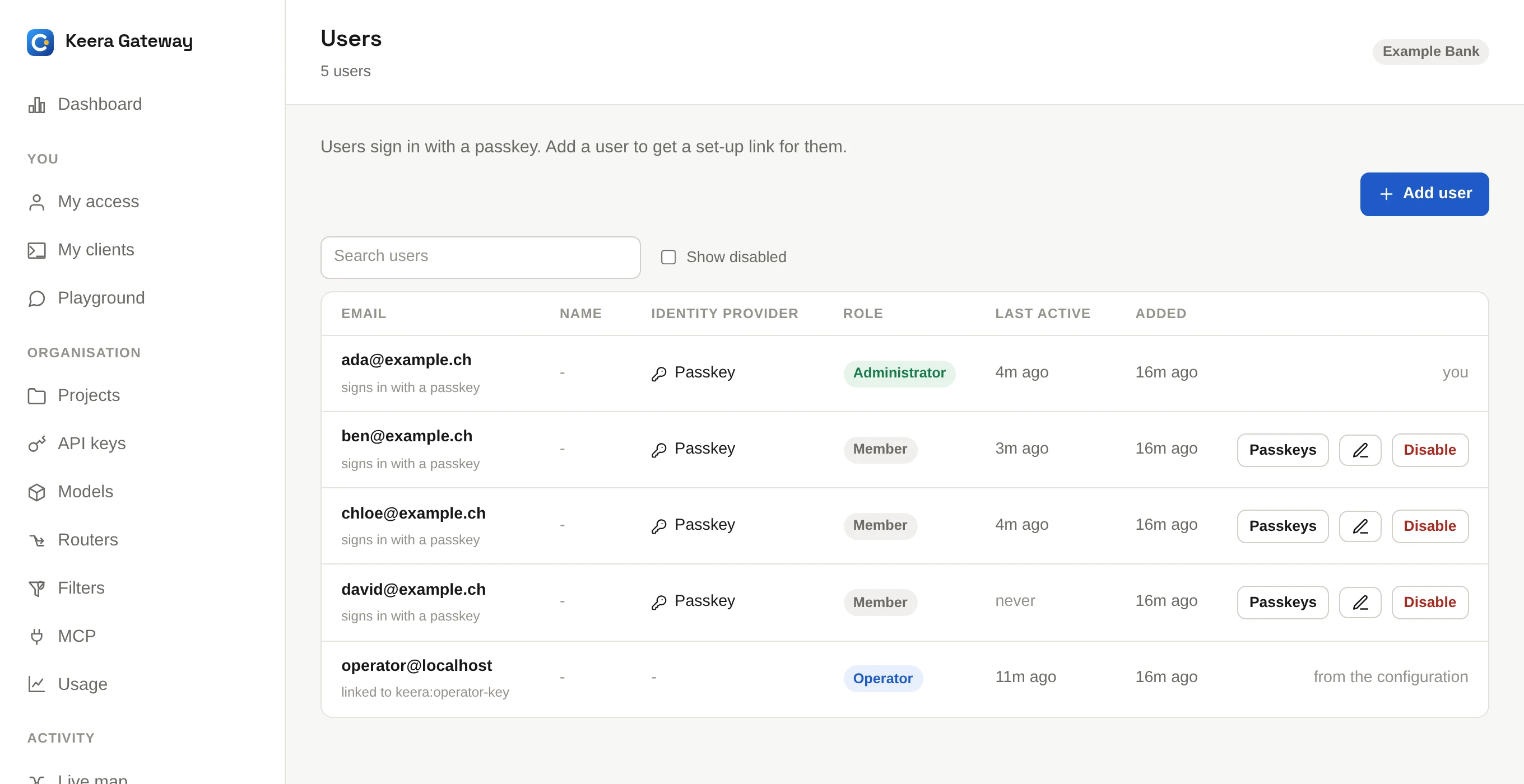
The row you added is an invitation. It becomes theirs when they first sign in with that address.
For someone without such an account, choose Signs in with: A passkey, or
add --passkey. You get a set-up link that works once, for 24 hours. Send it
to the person privately.
keera user add ben@example.ch --passkey
keera user passkey-link ben@example.ch   # a new link, for a lost device
Change a role
keera user role ada@example.ch admin
Or use the role menu on the Users screen. The person is signed out of this organisation, so the new role applies at once.
When someone leaves
Disable them:
keera user disable ada@example.ch
Or click Disable on the Users screen. At once:
- they cannot sign in, and all their sessions end
- every key that belongs to them is revoked for good
- their sandboxes are stopped
Their usage and audit entries keep their name. keera user enable lets them
back in, without their old keys.