My access
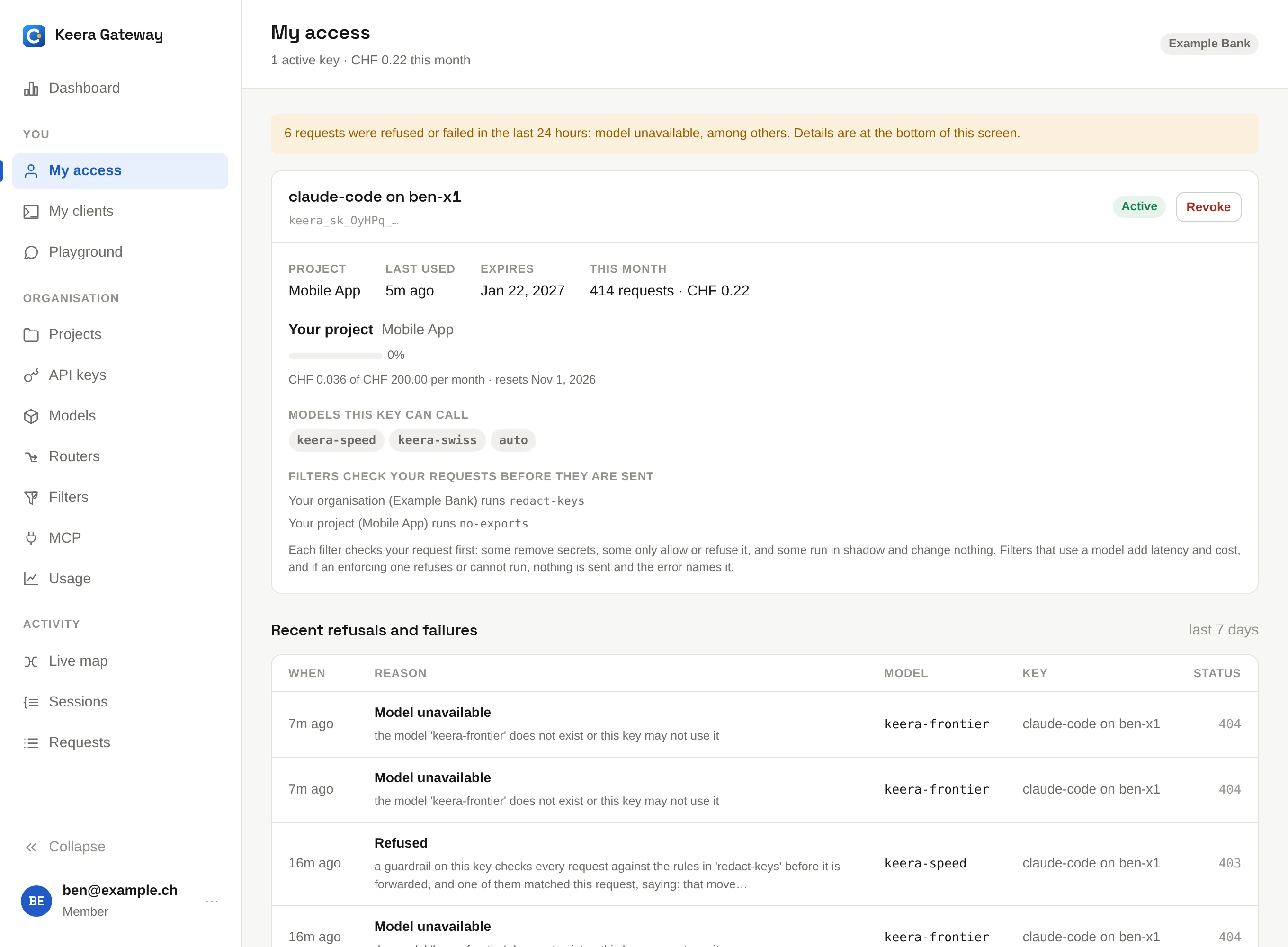
My access is your own page in the panel. It shows each of your keys, and for each one:
- the project it belongs to, when it was last used and when it expires
- how much of the budget is used, and when the budget resets
- the models it may call
- the filters that check its requests
- the requests that were refused or failed recently, with the reason
Activate a key
An administrator can issue a key for you without seeing its secret. It shows as Not activated until you activate it. Click Activate on My access, and copy the secret: it is shown only once. Or run:
keera key activate <key-id>
keera connect claude-code also activates such a key and writes it into
Claude Code's settings.
Rotate or revoke a key
On the API keys screen, or with keera key rotate and keera key revoke:
- Rotate gives a key a new secret and keeps its project, guardrails and expiry. The old secret stops working at once. Do this when a key may have leaked.
- Revoke stops a key for good.
Only administrators issue new keys. Ask yours when you need one.
My clients
My clients lists the tools that sent requests with your keys, such as Claude Code or Codex, and which key each one used. Connect client shows how to set up another one. See Connect your tools.
When a request is refused
Your tool shows the message the gateway sent. The most common reasons:
| Message says | What to do |
|---|---|
| budget exceeded (402) | The budget is used up. It resets on the date shown. Ask an administrator for more. |
| credit exhausted (402) | The organisation's prepaid credit is used up. An administrator adds credit. |
| rate limit (429) | Too many requests in a short time. Wait a moment; the tool usually retries. |
| refused by a filter (403) | A filter found something that may not be sent, such as a password. Remove it and try again. |
| model not found (404) | The key may not use this model, or the name is wrong. Check the models on My access. |
| key expired or revoked (401) | Ask for a new key, or activate the one waiting for you. |
Errors lists every error code.