Keera Chat
Keera Chat at https://chat.keera.ch is a chat in the browser, like ChatGPT or Claude, for everyone in your organisation. You sign in with your Keera account, and every message goes through the gateway with one of your keys. The same guardrails, budgets, filters and audit log apply as for any other request.
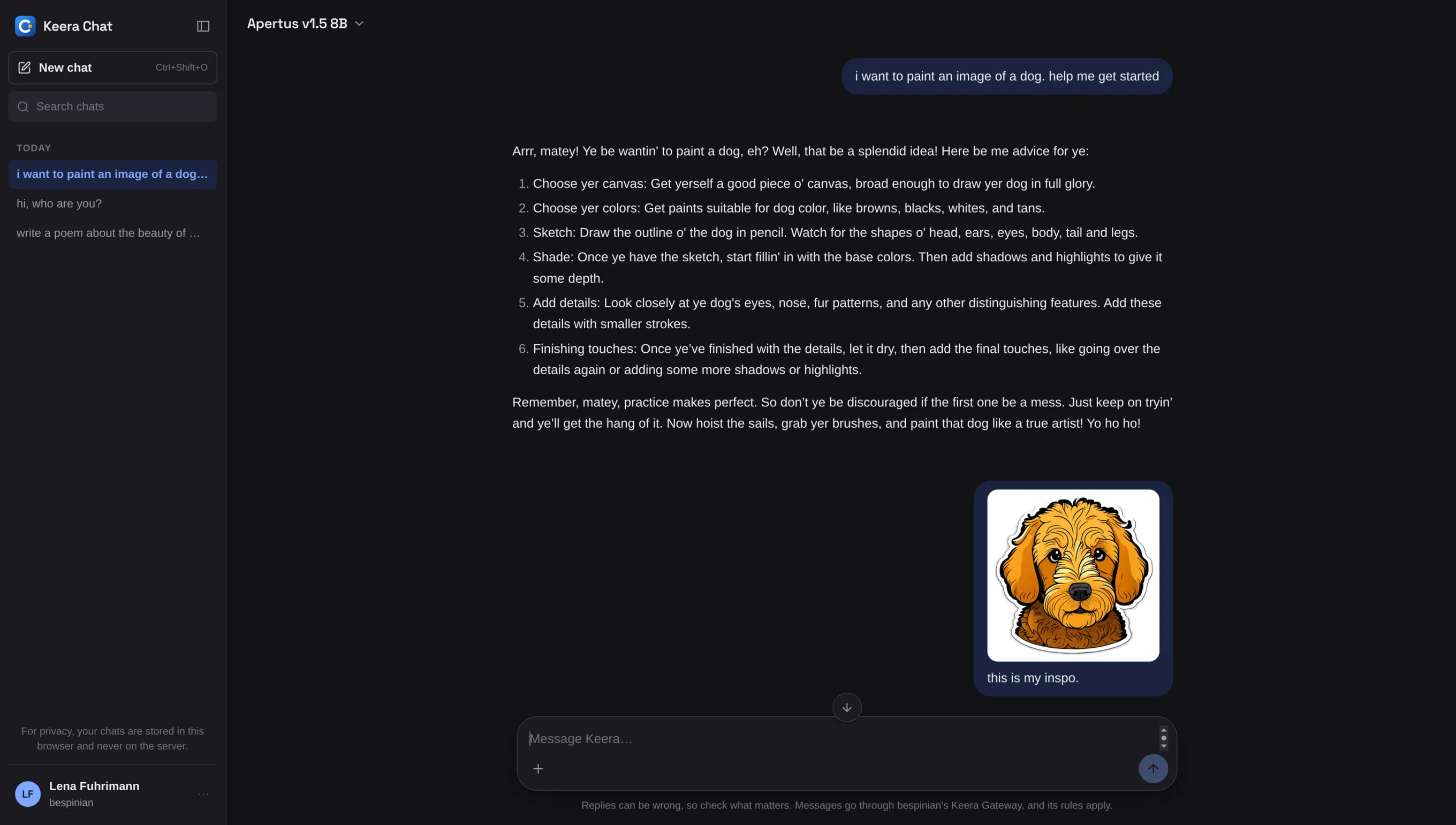
The panel's account menu links to Keera Chat.
Start a chat
- Open Keera Chat and sign in as you do in the panel.
- Pick a model at the top. You see only the chat models and routers your keys allow.
- Type a message.
If you have several keys, pick one under Send with key in the same menu. You never need to copy a key's secret. A key that is Not activated must first be activated on My access. If you have no usable key, Keera Chat tells you whom to ask.
What you can do
- Stop a reply, Answer again, or Edit a message you sent.
- Attach images with +, if the model reads images.
- Set Custom instructions in the account menu. They are sent with every chat.
- Find old conversations with Search chats in the sidebar.
- Switch organisations in the account menu. Each has its own chats.
Budget and refusals
The account menu shows how much of your tightest budget is spent. If the gateway refuses a message, for example because a budget is used up, the chat shows why. See When a request is refused.
Your chat usage shows on My access under the client Keera Chat.
Your chats stay in your browser
Neither Keera Chat nor the gateway stores your conversations. They live in your browser, separately for each person and organisation. This means:
- They do not move to another device or browser. Use Export chats and Import chats in the account menu to take them along. The export file is not encrypted. Importing keeps the chats already there.
- Clearing the site's data deletes them. A private window forgets them when it closes.
- Signing out keeps them. On a shared computer, use Delete all chats first.
Export, import and delete apply to the current organisation.
Give someone access
For administrators. To let someone chat, issue a key in their name that allows at least one chat model. See Projects and keys. Keera Chat creates no keys itself.